


适用于源力设计的主题
安装和使用 VChart
在 React 工程中,可以使用以下命令安装 react-vchart:
# 使用 npm 安装
npm install @visactor/react-vchart
# 使用 yarn 安装
yarn add @visactor/react-vchart
绘制图表以及更详细的指引详见:https://visactor.io/vchart/guide/tutorial_docs/Cross-terminal_and_Developer_Ecology/react
适用于源力设计的图表主题包
为了使 VChart 在源力页面环境中获得更好的体验,VisActor 额外推出了 @visactor/vchart-ve-o-theme 主题包。这个包有以下特性:
-
开箱即用:经过简单的配置,就可以使 VChart 样式自动融入源力设计语言,自动适配 Arco 系的主题包。
-
响应式:
@visactor/vchart-ve-o-theme支持监听页面上的亮暗模式变化,自动对页面上的 VChart 图表的主题进行热更新。
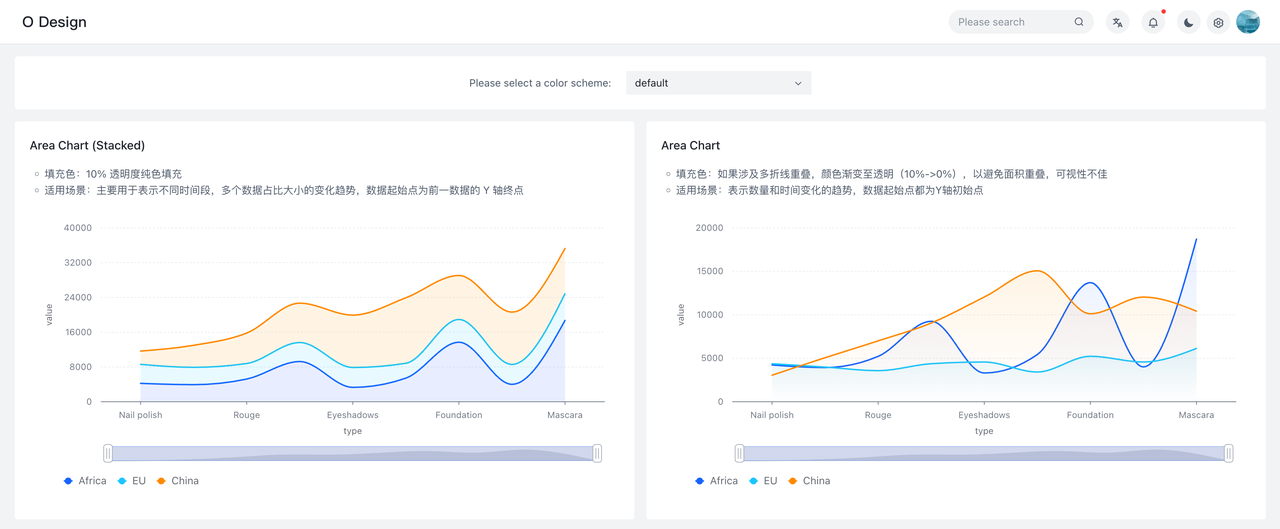
DEMO
完整 demo 请访问此页面。
安装
https://www.npmjs.com/package/@visactor/vchart-ve-o-theme
# npm
npm install @visactor/vchart-ve-o-theme

# yarn
yarn add @visactor/vchart-ve-o-theme
基本使用
实现默认的功能,只需要在全局执行一次 initVChartVeOTheme 方法进行初始化。这个语句通常可以放在 react 项目的入口文件中。如以下示例:
import React from 'react';
import { createRoot } from 'react-dom/client';
import App from './app.jsx';
import { initVChartVeOTheme } from '@visactor/vchart-ve-o-theme';

// initialization
initVChartVeOTheme();

const dom = document.querySelector('#root');
const root = createRoot(dom);
root.render(<App />);
initVChartVeOTheme 方法支持传入一个对象作为 option,其类型声明为:
interface IInitVChartVeOThemeOption {
  /** 初始亮暗色模式 */
  defaultMode?: 'light' | 'dark';
  /** 是否监听亮暗色模式自动更改图表主题,默认为 true */
  isWatchingMode?: boolean;
  /** arco css 变量前缀,例如:原始变量名为 --color-data-1,配置为 "arco" 后变为 --arco-color-data-1 */
  prefix?: string;
  /** 指定 ThemeManager,一般不用指定,如果遇到多版本 vchart 共存时需要指定 */
  themeManager?: typeof ThemeManager;
  /** 指定初始的数据色板 */
  colorScheme?: ColorSchemeType | string;
}
高级功能
以下将依次介绍 @visactor/vchart-ve-o-theme 主题包内置的其他功能。
默认色板 + 行业色板
@visactor/vchart-ve-o-theme 支持 8 套数据色板,分别为:
default- 默认色板(和默认 VChart 一致)finance- 金融行业色板government- 政府行业色板consumer- 大消费行业色板automobile- 汽车行业色板culturalTourism- 文旅行业色板medical- 医疗行业色板newEnergy- 新能源行业色板
可在 demo 中(https://www.visactor.io/vchart/theme/demo/veo)通过下拉框切换色板进行预览。
主题包提供了这些数据色板的初始化和切换的功能。在使用上,除了可以在上文提到的初始化参数 option 中配置 colorScheme,也可以对数据色板进行热更新。示例如下:
// init once globally
const helper = initVChartVeOTheme();

// some your codes... (eg. init charts)

// change the current color scheme
helper.switchVChartColorScheme('finance');
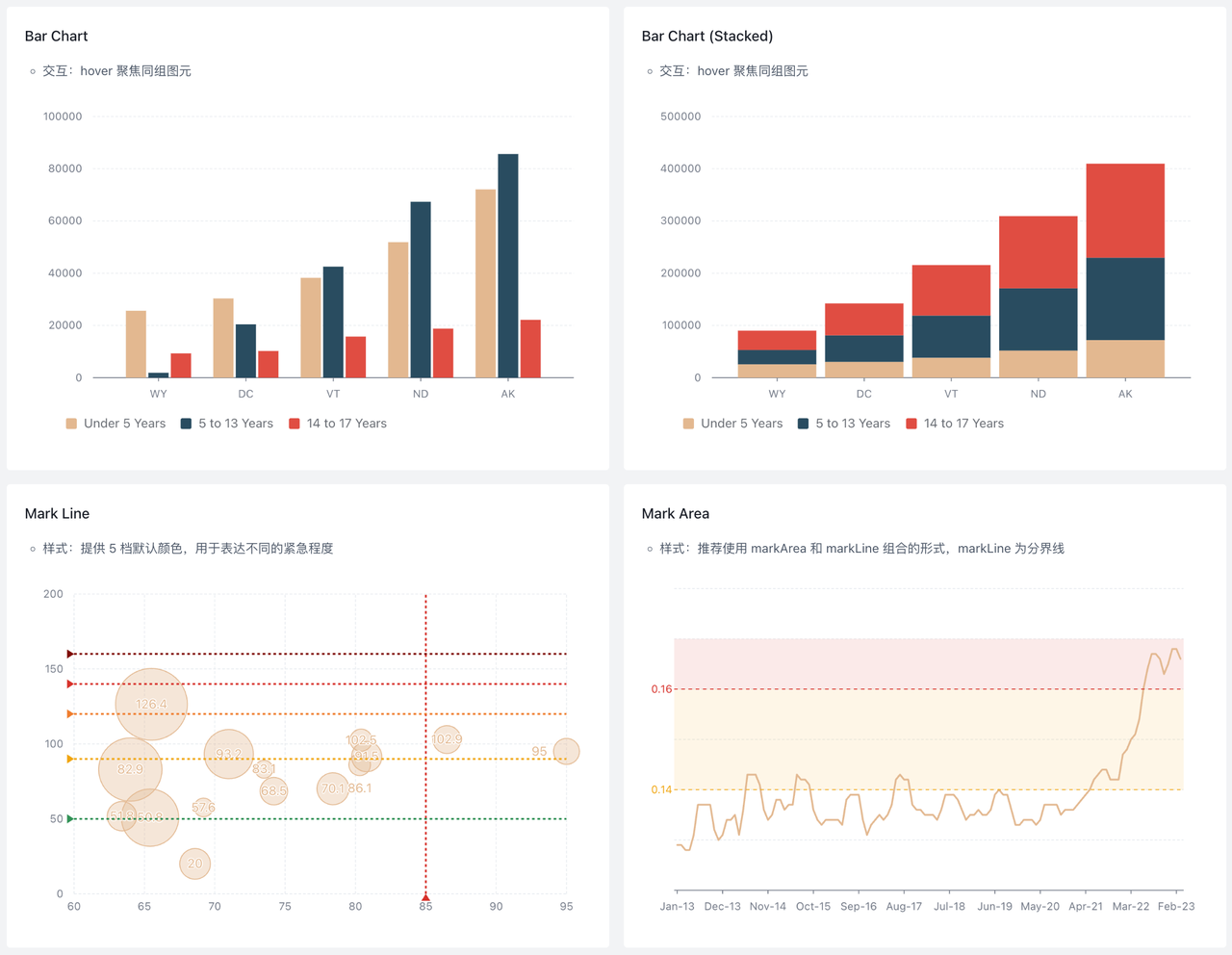
应用 finance 色板的图表如下图所示:
柱状图交互插件
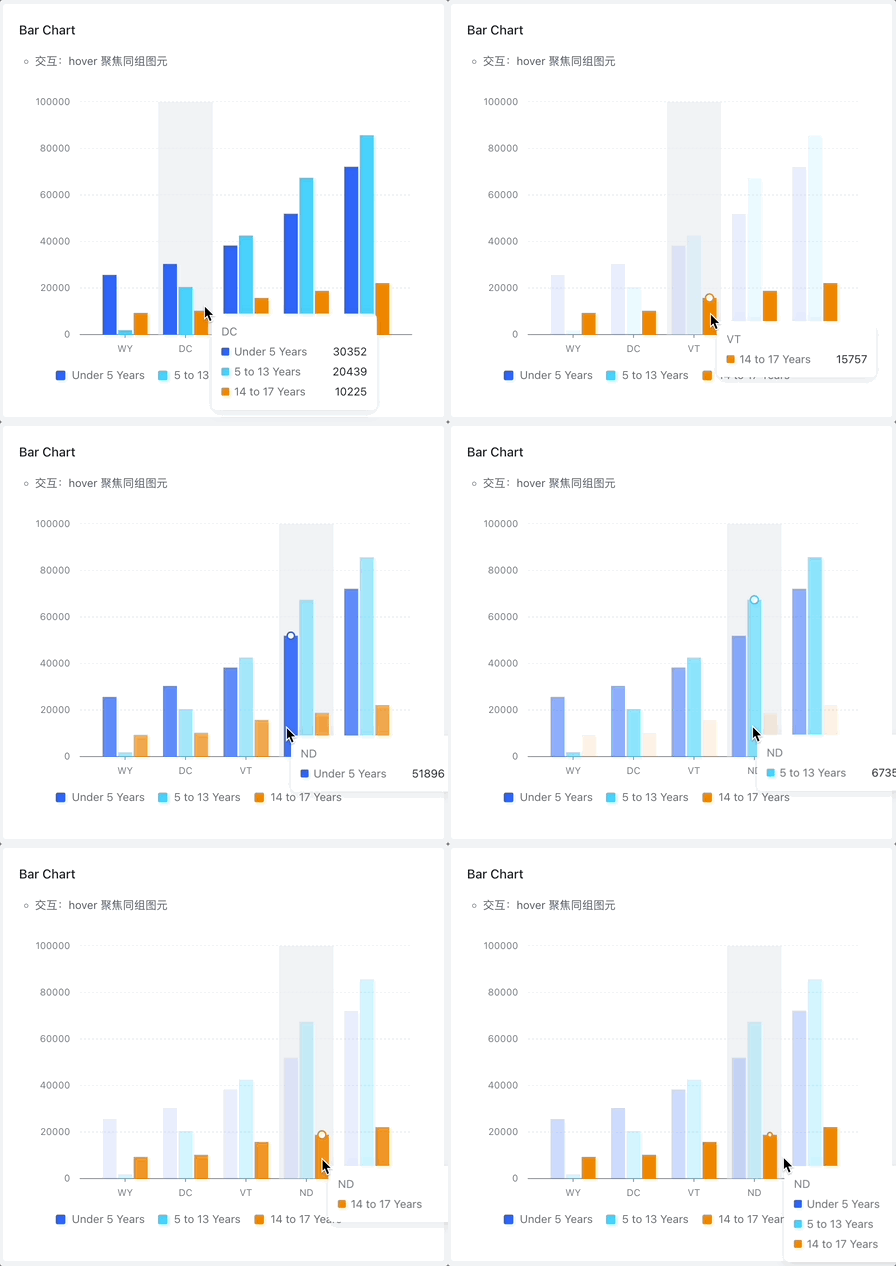
在源力设计体系中,柱状图的图元有以下两项默认的交互效果:
- 鼠标 hover 到柱状图元时,高亮显示所有同组图元
- 鼠标 hover 的柱状图元边缘出现圆形标记
如下图所示:
主题包提供了一个图表插件来实现这种定制的交互效果。需要在全局运行一次以下函数(通常可以放在 react 项目的入口文件中),便可以自动给所有柱状图添加此种交互:
import { registerBarMarker } from '@visactor/vchart-ve-o-theme';

// initialization
registerBarMarker();
内置形状与颜色
主题包为 VChart 定制了特殊的图例形状(也可用于 tooltip):

形状声明在主题包的 VeOSymbolType 常量中。包含以下形状类型:
VeOSymbolType.roundSpuare:圆角矩形VeOSymbolType.line:短横线VeOSymbolType.linePoint:短横线叠加圆形VeOSymbolType.linePointHollow:短横线叠加空心圆形VeOSymbolType.lineDash:短虚线VeOSymbolType.triangleUp:向上三角形(用于标注线)VeOSymbolType.triangleDown:向下三角形(用于标注线)
以下示例为在折线图中将图例和 tooltip 形状更改成 VeOSymbolType.linePoint:
const spec = {
  type: 'area',
  data: {
    values: [
      { type: 'Nail polish', country: 'Africa', value: 4229 },
      { type: 'Nail polish', country: 'EU', value: 4376 },
      { type: 'Nail polish', country: 'China', value: 3054 },
      { type: 'Eyebrow pencil', country: 'Africa', value: 3932 },
      { type: 'Eyebrow pencil', country: 'EU', value: 3987 },
      { type: 'Eyebrow pencil', country: 'China', value: 5067 },
      { type: 'Rouge', country: 'Africa', value: 5221 },
      { type: 'Rouge', country: 'EU', value: 3574 },
      { type: 'Rouge', country: 'China', value: 7004 },
      { type: 'Lipstick', country: 'Africa', value: 9256 },
      { type: 'Lipstick', country: 'EU', value: 4376 },
      { type: 'Lipstick', country: 'China', value: 9054 },
      { type: 'Eyeshadows', country: 'Africa', value: 3308 },
      { type: 'Eyeshadows', country: 'EU', value: 4572 },
      { type: 'Eyeshadows', country: 'China', value: 12043 },
      { type: 'Eyeliner', country: 'Africa', value: 5432 },
      { type: 'Eyeliner', country: 'EU', value: 3417 },
      { type: 'Eyeliner', country: 'China', value: 15067 },
      { type: 'Foundation', country: 'Africa', value: 13701 },
      { type: 'Foundation', country: 'EU', value: 5231 },
      { type: 'Foundation', country: 'China', value: 10119 },
      { type: 'Lip gloss', country: 'Africa', value: 4008 },
      { type: 'Lip gloss', country: 'EU', value: 4572 },
      { type: 'Lip gloss', country: 'China', value: 12043 },
      { type: 'Mascara', country: 'Africa', value: 18712 },
      { type: 'Mascara', country: 'EU', value: 6134 },
      { type: 'Mascara', country: 'China', value: 10419 }
    ]
  },
  stack: true,
  xField: 'type',
  yField: 'value',
  seriesField: 'country',
  legends: [
    {
      visible: true,
      item: {
        shape: { style: { symbolType: VeOSymbolType.linePoint } }
      }
    }
  ],
  tooltip: {
    visible: true,
    style: {
      shape: {
        shapeType: VeOSymbolType.linePoint
      }
    }
  }
};
主题包同时内置了 5 种表示不同紧急程度的颜色:
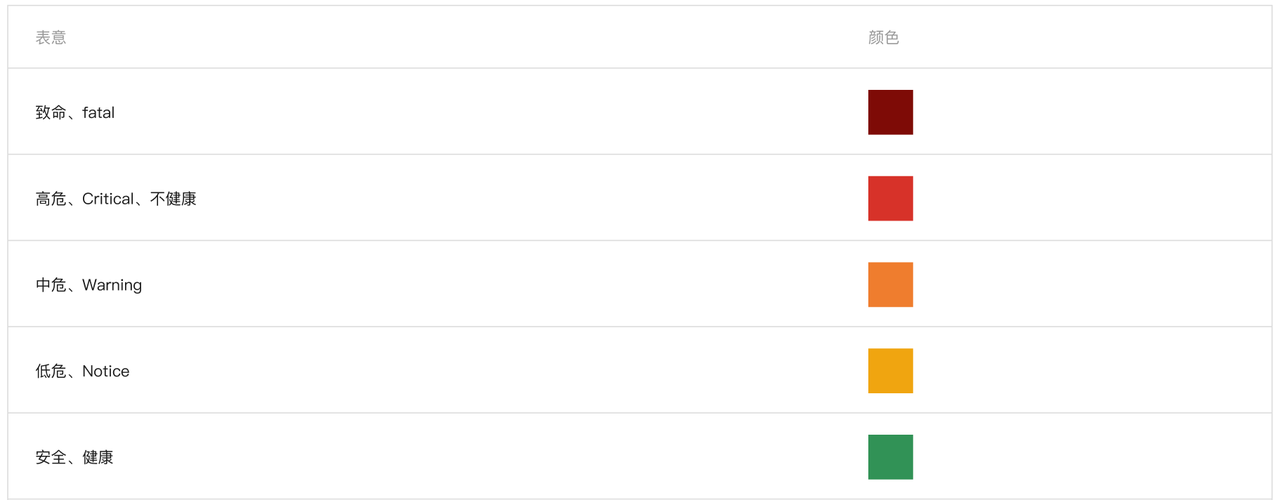
声明为 VeOColor 常量,使用方法与 VeOSymbolType 相似。
export const VeOColor = {
  /** 致命 */
  fatal: '#7E0C06',
  /** 高危、不健康 */
  critical: '#D7312A',
  /** 中危、警告 */
  warning: '#EF7D2E',
  /** 低危,提示 */
  notice: '#F0A50F',
  /** 安全,健康 */
  safe: '#309256'
};
静态主题
@visactor/vchart-ve-o-theme 主题包同时导出了 json 格式的静态主题,内置了源力设计的样式默认值。
- veODesignLight O Design - light
- veODesignLightFinance O Design - light - 金融行业色板
- veODesignLightGovernment O Design - light - 政府行业色板
- veODesignLightConsumer O Design - light - 大消费行业色板
- veODesignLightAutomobile O Design - light - 汽车行业色板
- veODesignLightCulturalTourism O Design - light - 文旅行业色板
- veODesignLightMedical O Design - light - 医疗行业色板
- veODesignLightNewEnergy O Design - light - 新能源行业色板
- veODesignDark O Design - dark
- veODesignDarkFinance O Design - dark - 金融行业色板
- veODesignDarkGovernment O Design - dark - 政府行业色板
- veODesignDarkConsumer O Design - dark - 大消费行业色板
- veODesignDarkAutomobile O Design - dark - 汽车行业色板
- veODesignDarkCulturalTourism O Design - dark - 文旅行业色板
- veODesignDarkMedical O Design - dark - 医疗行业色板
- veODesignDarkNewEnergy O Design - dark - 新能源行业色板
使用时,直接从该包中引用对应主题的 JSON 文件,全局只需执行一次:
import ttPlatformLight from '@visactor/vchart-ve-o-theme/public/veODesignLight.json';
import VChart from '@visactor/vchart';
// register the theme
VChart.ThemeManager.registerTheme('veODesignLight', veODesignLight);
// apply the theme
VChart.ThemeManager.setCurrentTheme('veODesignLight');